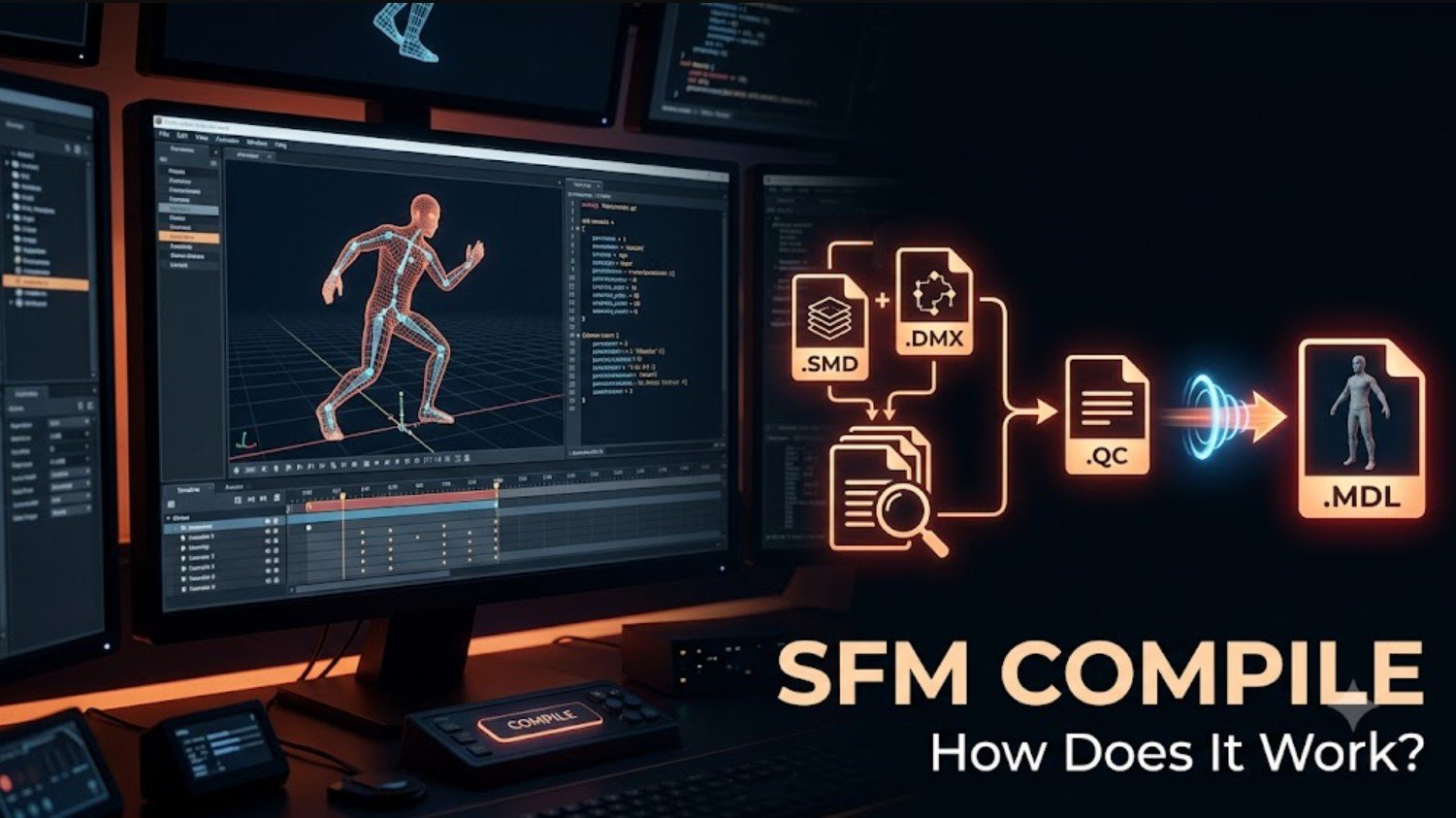
Source Filmmaker is Valve’s animation and filmmaking software built on the Source game engine. It allows creators to arrange characters, control cameras, add lighting, edit movement, and produce animated scenes using assets that the engine can understand.
This conversion process is commonly called SFM compile. The term usually refers to preparing and compiling custom models, animations, textures, or related assets so they can be loaded correctly in Source Filmmaker. It is an important part of the workflow for creators who want to use original characters, props, environments, or modified game assets in their projects.
What Does SFM Compile Mean?
SFM compile is not the official name of a separate Valve application. Instead, it is a community term used to describe the technical process of converting editable source files into formats that Source Filmmaker can read. In most cases, the phrase refers specifically to model compilation, although it may also be used more broadly when discussing maps, materials, and animations.
A 3D model created in Blender, Maya, or another modelling program usually contains editable geometry, bones, materials, and animation data. Source Filmmaker cannot use the original project file directly. The result is a collection of files that SFM can load as a complete model.
Compilation is different from rendering. Compiling prepares an asset for use inside Source Filmmaker, while rendering creates the final image sequence or video from an animated scene. Confusing these two processes can make tutorials difficult to follow, especially for beginners searching for help with importing custom models.
In practical terms, compiling tells the Source engine how a model should behave. It defines the model’s location, materials, skeleton, animations, collision data, bodygroups, attachments, and other technical properties. Without a successful compile, a custom asset may appear as an error model, display missing textures, fail to animate, or not appear in SFM at all.
How Does the SFM Compilation Process Work?
The process usually begins in a 3D modelling application. A creator prepares the mesh, applies textures, builds or imports a skeleton, assigns vertex weights, and checks that the model has the correct scale and orientation. Any animations must use the same bone structure as the main model. Problems at this stage often remain visible after compilation, so it is important to correct them before exporting.
SFM Compilation Process
Next, the creator writes or edits a QC file. A QC file is a text-based configuration script that gives instructions to the compiler. It may define the final model path, reference mesh, material folder, animation sequences, collision model, skin options, bodygroups, attachments, and other settings.
Many users run StudioMDL through Crowbar, a third-party graphical utility that makes the process easier to manage. Valve’s official documentation on compiling a model explains how source files, QC commands, and StudioMDL work together within the Source asset pipeline.
Model files normally go inside a subfolder under game/usermod/models, while materials are placed under game/usermod/materials. The relative paths used in the QC and material files must match the actual folder structure.
Finally, the creator opens Source Filmmaker and tests the model. This check should include materials, bones, facial controls, animations, bodygroups, attachments, and general scale. A technically successful compile does not always mean the asset is ready, so testing remains an essential part of the workflow.
Which Files and Tools Are Used for SFM Compile?
Several file types can be involved in an SFM compile. Their exact use depends on the complexity of the asset, but most model projects include source files, a QC script, compiled model files, and material files.
| File type | Main purpose |
|---|---|
.SMD | Stores model geometry, skeletons, or animation data |
.DMX | Carries Source-compatible model or animation information |
.VTA | Commonly used for vertex animation and facial flex data |
.QC | Provides compilation instructions |
.MDL | Contains the main compiled model structure |
.VVD | Stores vertex information |
.VTX | Contains optimized mesh data for rendering |
.PHY | Stores optional collision and physics information |
.VMT | Defines how a material is rendered |
.VTF | Contains the texture image data |
The QC file is one of the most important parts of the process. For example, $modelname defines where the compiled model will be stored, $body or $model identifies the reference mesh, and $cdmaterials tells the engine where to find the related materials. Animation sequences can be added with $sequence, while collision geometry may be included with $collisionmodel.
StudioMDL performs the actual compilation. It reads the QC instructions, processes the exported model data, and produces the final Source model files. Because StudioMDL is a command-line tool, many creators prefer Crowbar, which provides a graphical interface for selecting a QC file, choosing the target game, starting the compile, and reviewing the output log.
Blender users often rely on Blender Source Tools to export SMD or DMX files. These tools help bridge the gap between modern 3D software and the older Source Engine asset pipeline. Regardless of the exporter used, creators should confirm that bones, materials, animation frames, and export paths are correct before compiling.
Common SFM Compile Problems and Their Solutions
One of the most common problems is the pink-and-black checkerboard texture. This usually means that Source Filmmaker cannot locate or load the required material. The cause may be a missing VMT or VTF file, an incorrect $cdmaterials path, a wrong $basetexture value, or materials placed in the wrong folder.
An error model or invisible asset usually indicates missing model files or an incorrect path. Copying only the MDL file may not be enough. The path written in $modelname should also match the folder where the compiled files are installed.
A compiler message about gameinfo.txt usually means that StudioMDL is targeting the wrong game directory. The selected game path must point to a valid Source Filmmaker game folder containing the required configuration files. In Crowbar, choosing the correct game setup often resolves this issue.
Skeleton and animation problems can occur when bone names change, the animation uses a different rig, vertex weights are incorrect, or the root bone is missing.
Incorrect scale and orientation are also common. A model may appear too large, too small, rotated, or positioned below the floor. Applying transforms in Blender, checking the export scale, and testing the model early can prevent repeated compilation attempts.
Best Practices for Compiling SFM Assets
A clean folder structure makes an SFM compile easier to manage. Use a unique directory for each project instead of placing every custom model directly inside the main models folder. Clear folder names reduce the chance of conflicts with other Workshop items or installed assets.
Keep source files separate from compiled files. Store Blender projects, SMD files, QC scripts, textures, and reference notes in an organized project directory outside SFM. Only copy the final model and material files into the Source Filmmaker game folders.
Read the compiler log carefully. Warnings do not always stop the model from compiling, but they can reveal problems involving bones, materials, collision meshes, missing sequences, or invalid commands. Solving warnings early can prevent visible errors later.
Test the asset after every major change rather than waiting until the entire project is complete. Check the reference mesh first, then add materials, animations, facial controls, and advanced features. This step-by-step approach makes it easier to identify which change caused a problem.
It is also wise to back up working versions of the QC file and exported model data. Small changes to paths, bone settings, or animation commands can break a previously functional asset. Versioned backups allow creators to return to a stable configuration without rebuilding the project.
Conclusion
SFM compile is the process of converting custom model and animation data into formats that Source Filmmaker can use. It normally involves exporting SMD or DMX files, creating a QC script, compiling the asset with StudioMDL or Crowbar, installing the output files, and testing them inside SFM.
Correct file paths, organized folders, accurate QC commands, and careful testing are the main foundations of a reliable Source Filmmaker asset workflow.
Frequently Asked Questions
Is SFM compile the same as rendering?
No. Compilation converts models and other assets into Source-compatible formats. Rendering produces the final image or video from an SFM scene.
What program is used to compile SFM models?
StudioMDL is Valve’s model compiler. Crowbar is a popular graphical tool that can run the compiler and display its logs.
Why is my SFM model pink and black?
The pink-and-black pattern usually indicates a missing or incorrectly referenced material or texture. Check the VMT, VTF, $cdmaterials, and $basetexture paths.